Custom Toast message using CustomView in Sketchware
To create a custom Toast message in Sketchware, follow the steps given below.

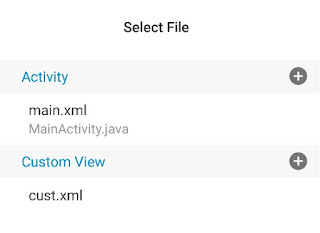
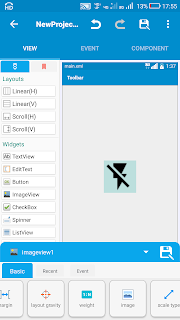
1. In your Sketchware android project, in VIEW area, create a new CustomView with name custom1. In this CustomView add a LinearH linear1 and a TextView textview1.

Customize the textview1 and linear1 as per your requirement.
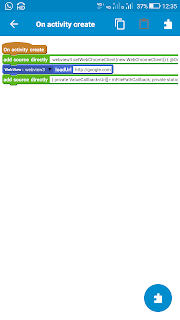
2. In LOGIC area, add a new More Block with name customToast(String _text) as shown in image below.

3. Next define this customToast Block. In event customToast MoreBlock use add source directly block, and in the block, write codes as described below.

First define a new LayoutInflater and use it to create a View from the CustomView.
LayoutInflater inflater = getLayoutInflater();
View toastLayout = inflater.inflate(R.layout.custom1, null);
Initialize textview1 and linear1 used in CustomView.
TextView textview1 = (TextView) toastLayout.findViewById(R.id.textview1);
LinearLayout linear1 = (LinearLayout) toastLayout.findViewById(R.id.linear1);
Set the text of textview1 to String _text.
textview1.setText(_text);
Create a new Toast.
Toast toast = new Toast(getApplicationContext());
Set duration of Toast.
toast.setDuration(Toast.LENGTH_SHORT);
Set the View created from CustomView, as view of Toast.
toast.setView(toastLayout);
Show the Toast.
toast.show();
The complete code should look like this:
LayoutInflater inflater = getLayoutInflater(); View toastLayout = inflater.inflate(R.layout.custom1, null);
TextView textview1 = (TextView) toastLayout.findViewById(R.id.textview1);
textview1.setText(_text);
LinearLayout linear1 = (LinearLayout) toastLayout.findViewById(R.id.linear1);
Toast toast = new Toast(getApplicationContext()); toast.setDuration(Toast.LENGTH_SHORT);
toast.setView(toastLayout);
toast.show();
If you want to round the corners of the Toast, you can create a GradientDrawable or any ShapeDrawable with rounded corners and set it as Background of linear1 or textview1. Here is an example with GradientDrawable.
LayoutInflater inflater = getLayoutInflater(); View toastLayout = inflater.inflate(R.layout.custom1, null);
TextView textview1 = (TextView) toastLayout.findViewById(R.id.textview1);
textview1.setText(_text);
LinearLayout linear1 = (LinearLayout) toastLayout.findViewById(R.id.linear1);
android.graphics.drawable.GradientDrawable gd = new android.graphics.drawable.GradientDrawable();
gd.setColor(Color.parseColor("#00449a"));
gd.setCornerRadius(60);
gd.setStroke(2, Color.parseColor("#ff0000"));
linear1.setBackground(gd);
Toast toast = new Toast(getApplicationContext()); toast.setDuration(Toast.LENGTH_SHORT);
toast.setView(toastLayout);
toast.show();
4. Use the more Block whenever you want to display a custom Toast, as shown in image below.

5. Save and run the project.

The video below shows how to use the code written above.
Custom Toast Message in AIDE: http://apktutor.com/custom-toast-message/

1. In your Sketchware android project, in VIEW area, create a new CustomView with name custom1. In this CustomView add a LinearH linear1 and a TextView textview1.

Customize the textview1 and linear1 as per your requirement.
2. In LOGIC area, add a new More Block with name customToast(String _text) as shown in image below.

3. Next define this customToast Block. In event customToast MoreBlock use add source directly block, and in the block, write codes as described below.

First define a new LayoutInflater and use it to create a View from the CustomView.
LayoutInflater inflater = getLayoutInflater();
View toastLayout = inflater.inflate(R.layout.custom1, null);
Initialize textview1 and linear1 used in CustomView.
TextView textview1 = (TextView) toastLayout.findViewById(R.id.textview1);
LinearLayout linear1 = (LinearLayout) toastLayout.findViewById(R.id.linear1);
Set the text of textview1 to String _text.
textview1.setText(_text);
Create a new Toast.
Toast toast = new Toast(getApplicationContext());
Set duration of Toast.
toast.setDuration(Toast.LENGTH_SHORT);
Set the View created from CustomView, as view of Toast.
toast.setView(toastLayout);
Show the Toast.
toast.show();
The complete code should look like this:
LayoutInflater inflater = getLayoutInflater(); View toastLayout = inflater.inflate(R.layout.custom1, null);
TextView textview1 = (TextView) toastLayout.findViewById(R.id.textview1);
textview1.setText(_text);
LinearLayout linear1 = (LinearLayout) toastLayout.findViewById(R.id.linear1);
Toast toast = new Toast(getApplicationContext()); toast.setDuration(Toast.LENGTH_SHORT);
toast.setView(toastLayout);
toast.show();
If you want to round the corners of the Toast, you can create a GradientDrawable or any ShapeDrawable with rounded corners and set it as Background of linear1 or textview1. Here is an example with GradientDrawable.
LayoutInflater inflater = getLayoutInflater(); View toastLayout = inflater.inflate(R.layout.custom1, null);
TextView textview1 = (TextView) toastLayout.findViewById(R.id.textview1);
textview1.setText(_text);
LinearLayout linear1 = (LinearLayout) toastLayout.findViewById(R.id.linear1);
android.graphics.drawable.GradientDrawable gd = new android.graphics.drawable.GradientDrawable();
gd.setColor(Color.parseColor("#00449a"));
gd.setCornerRadius(60);
gd.setStroke(2, Color.parseColor("#ff0000"));
linear1.setBackground(gd);
Toast toast = new Toast(getApplicationContext()); toast.setDuration(Toast.LENGTH_SHORT);
toast.setView(toastLayout);
toast.show();
4. Use the more Block whenever you want to display a custom Toast, as shown in image below.


The video below shows how to use the code written above.
Custom Toast Message in AIDE: http://apktutor.com/custom-toast-message/


How to set custom duration in toast?
ReplyDeletecomo posso fazer um toast exibir a informação contida num text view em outra activity? ex: o botão do toast esta no main.xml e a informação que eu qero chama esta em outro .xml criado( no caso seria uma memoria para armazenar informações preenchidas no text view).
ReplyDeleteStore the message in File Shared Preferences. Then Toast the File get key...
DeleteHow to make more block for add image in dialogue box
ReplyDeleteyourdialog.setIcon(R.drawable.image_name)
Awsome.. it's working
ReplyDeleteUsing a CustomView is one of the best ways to create unique Toast messages in Sketchware because it gives you full control over the layout, colors, and animations. A well-designed custom toast can make your app feel more polished while improving the user experience. While exploring different development ideas, I also came across discussions on feminism dissertation topics, which reminded me how customization and creativity are valuable across both technical and academic fields. What design elements do you usually add to your custom Toast messages?
ReplyDelete